

What is xRDP?
xRDP is an open-source implementation of the Remote Desktop Protocol (RDP) that lets you connect to Linux server desktops just as easily as you would connect to Windows using the standard RDP client.
With xRDP, you can launch the familiar “Remote Desktop Connection” from your Windows or macOS computer and access a Linux server through a full graphical interface.
Why Choose xRDP Over Windows RDP?
1. Cost efficiency. Even on the entry-level VDS Start plan with xRDP pre-installed, your server will run faster and more stable than Windows on the same resources. Plus, there’s no need to purchase a Windows Server license.
2. Cross-platform compatibility. Connect from virtually any device—Windows, macOS, Linux, or even tablets and smartphones. As long as you have an RDP client installed, you’re good to go—no extra setup required.
3. Familiar experience for Windows users. If you’re used to the standard Windows Remote Desktop client (mstsc.exe), working with xRDP will feel identical. Simply enter the server’s IP address and your login credentials, and you’re instantly in your desktop environment.
4. Flexibility and choice. You’re free to pick the desktop environment that works best for you—lightweight XFCE, modern GNOME, or feature-rich KDE.
5. Stability and reliability. We’ve tested xRDP extensively on Ubuntu 24.04, and these platform provide excellent stability for production workloads.
6. Perfect when Windows software isn’t required. If your tasks don’t depend on Windows-only applications, xRDP is the smarter and more cost-effective choice. For browsing, office productivity, server administration, and other daily tasks, Linux with xRDP runs faster and is cheaper to maintain.
In short, xRDP gives you the convenience of remote desktop access while unlocking all the benefits of a Linux environment.
How to Order an xRDP Server with Friendhosting
Getting a Linux server with xRDP pre-installed is quick and effortless. Just follow these simple steps:
Step 1. Go to the order page
Open the server order page.
Step 2. Pick the right plan
Choose the plan that matches your needs—number of CPU cores, RAM, and storage. Even the entry-level Start plan is fully capable of running xRDP smoothly.
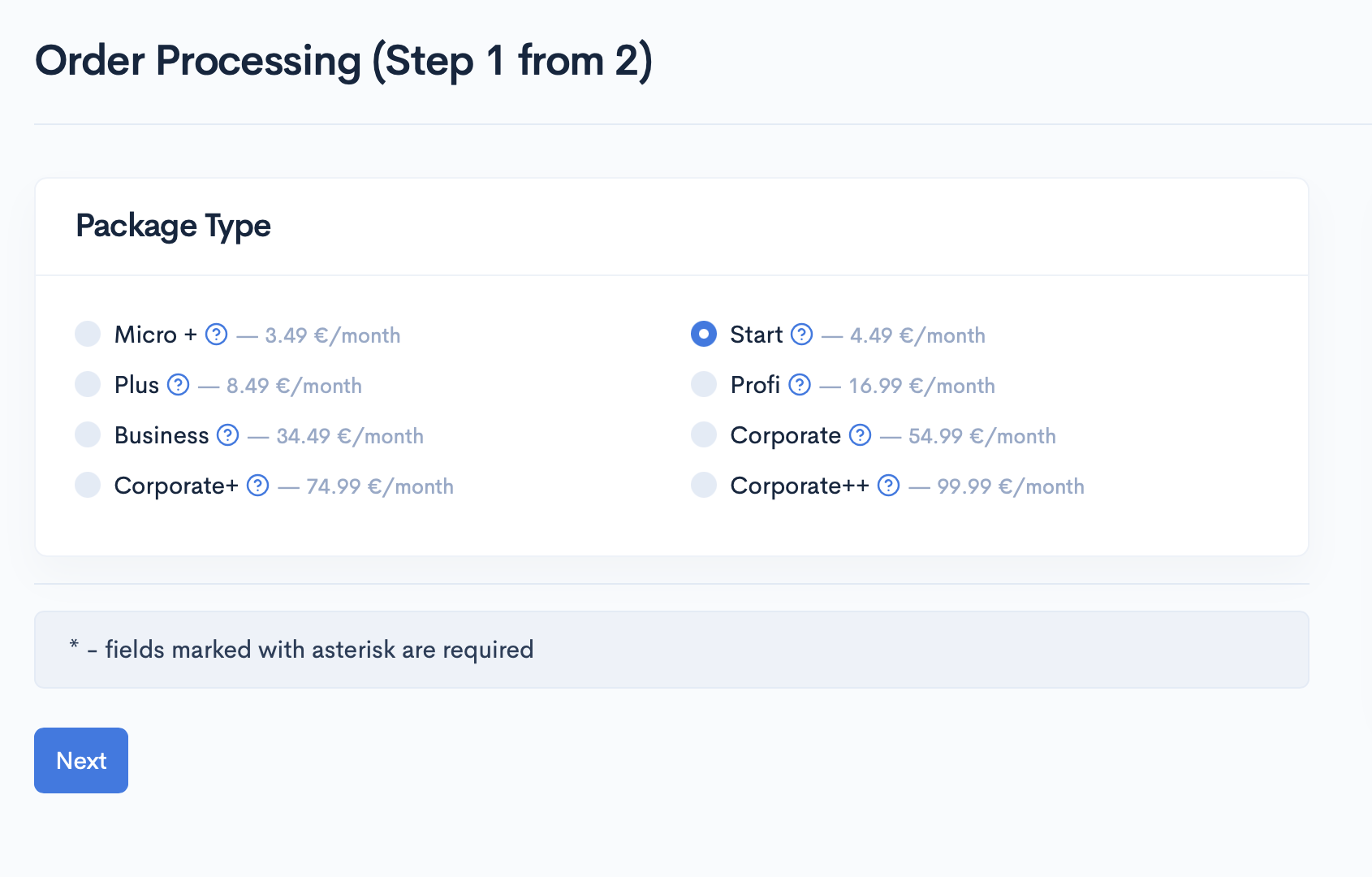
Step 3. Select the operating system and pre-installed software — xRDP
Next, choose Ubuntu 24.04 as the operating system, and from the list of pre-installed software, simply select xRDP.
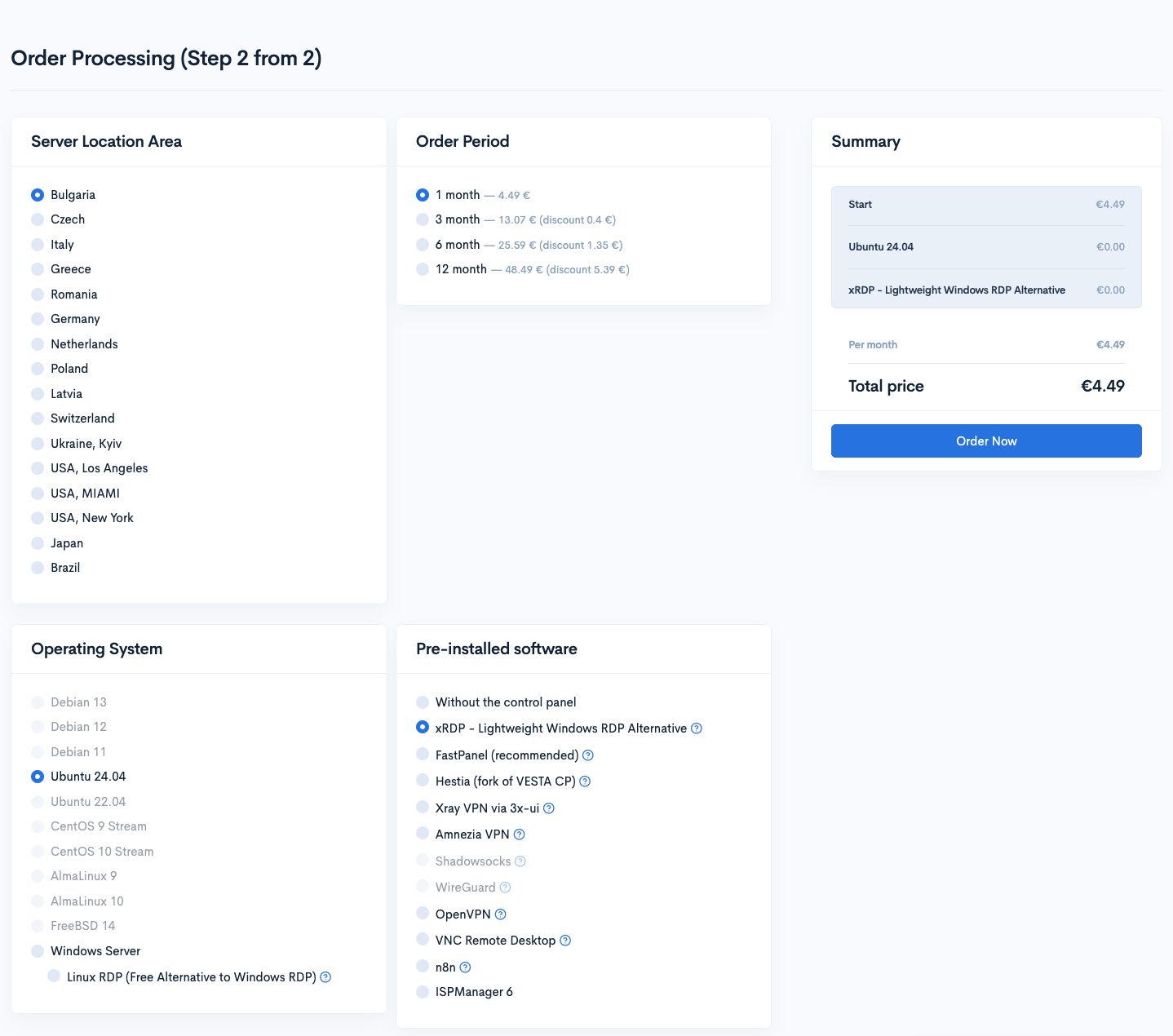
Step 4. Customize your server
Need more resources? Add extra RAM, additional CPU cores, or more disk space to match your workload.
Step 5. Complete your order
Click “Order,” complete the payment, and you will receive an email with your login credentials once your server is ready.
Connecting to the Server via xRDP
After your server is activated, you will receive an email containing the root access details for your server as well as the login and password required for connecting via RDP.
Connecting from Windows
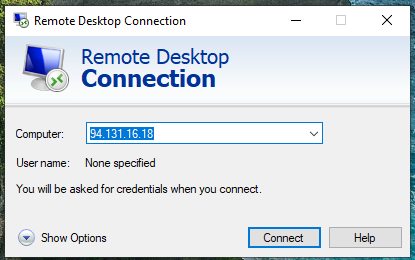
On Windows, simply open the standard Remote Desktop Connection program (Start → Run → mstsc) and enter the server’s IP address.
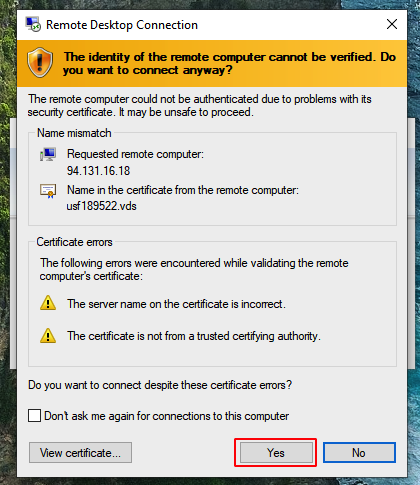
In the next window, confirm the connection.
Enter the xRDP login credentials you received in the email.
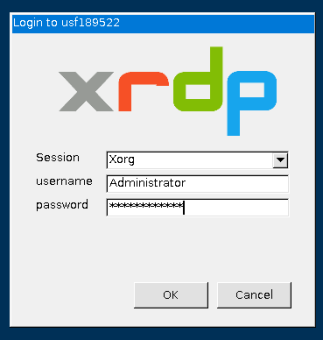
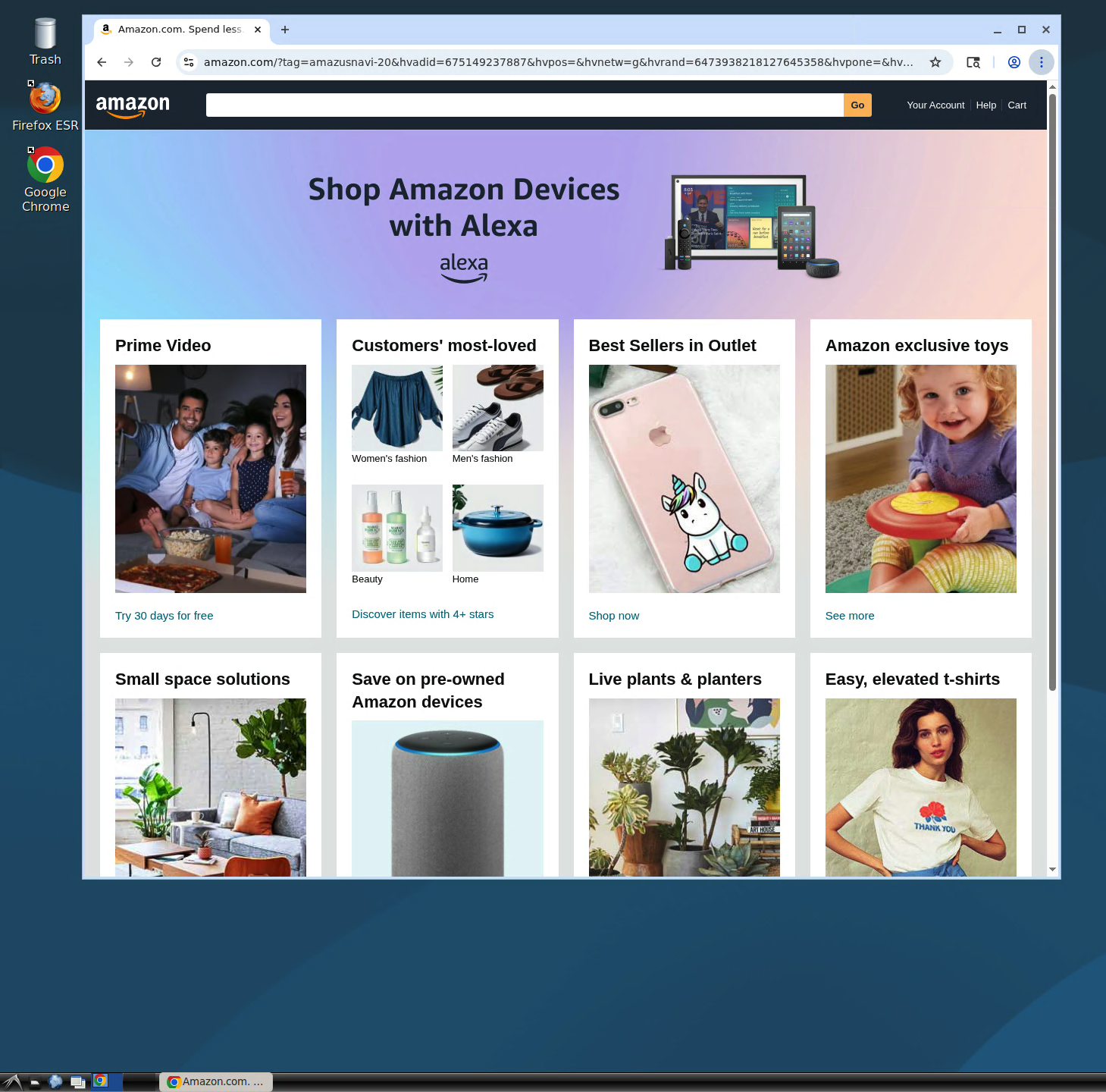
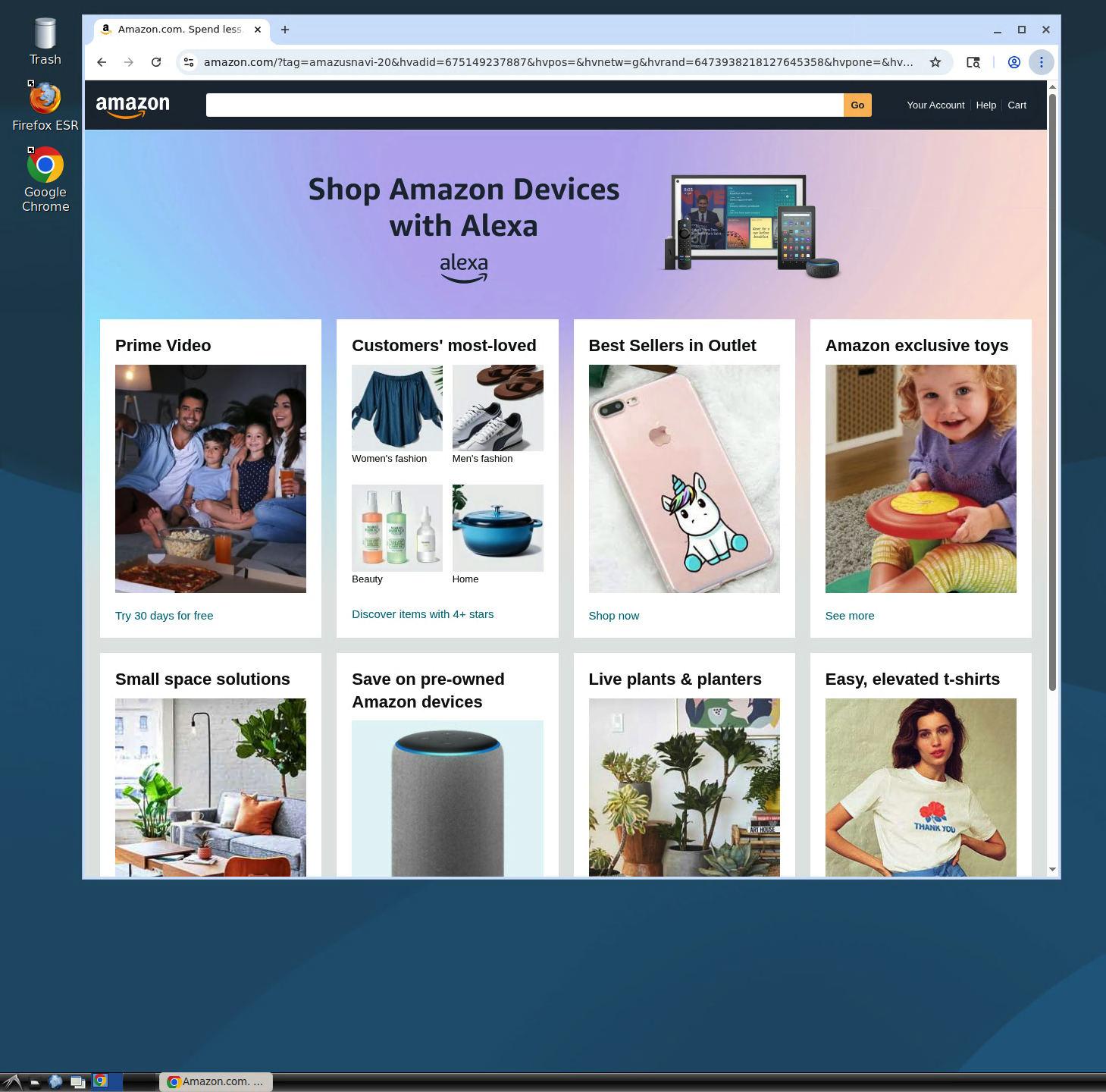
You will then see the remote desktop, where you can use your familiar applications — including a web browser.
Connecting from macOS
Use the Microsoft Remote Desktop client.
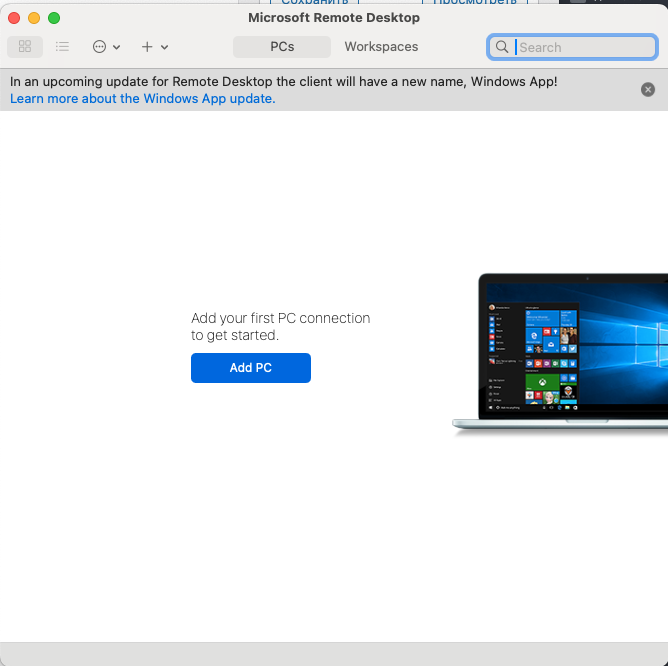
Click Add PC and enter the IP address of your server.
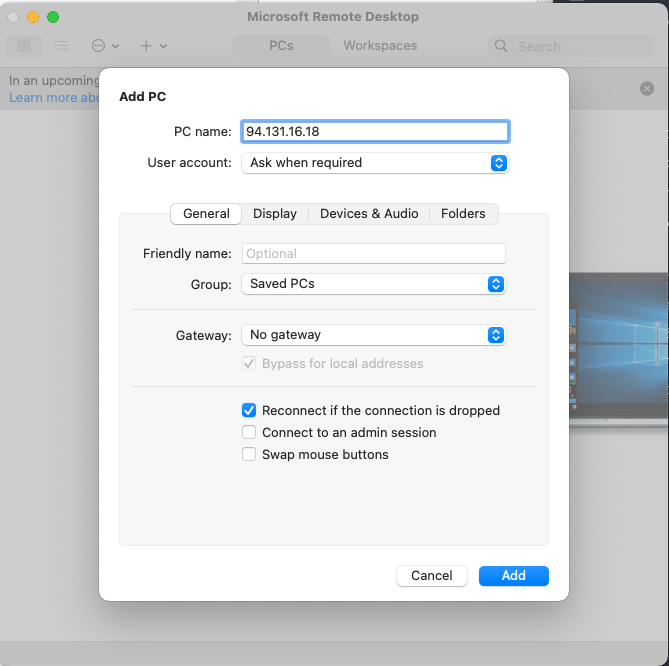
Connect to the saved server and enter the xRDP login credentials you received in the email.
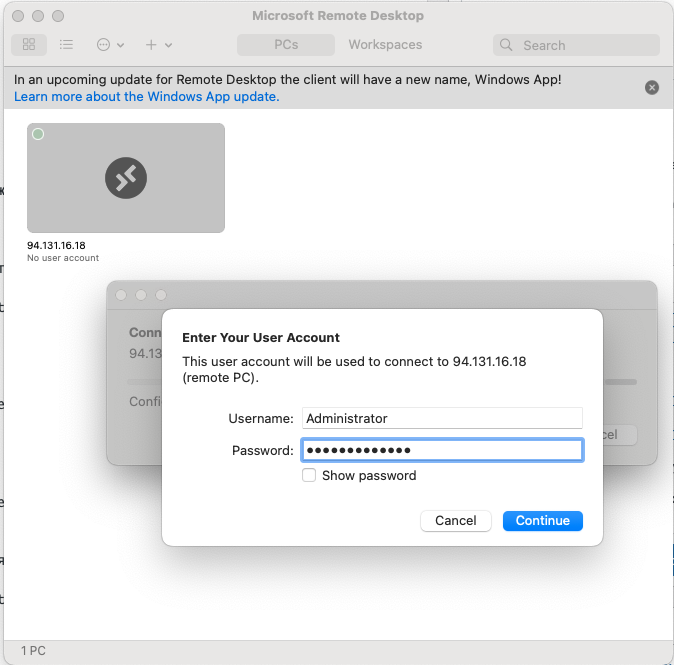
Next, click Continue.
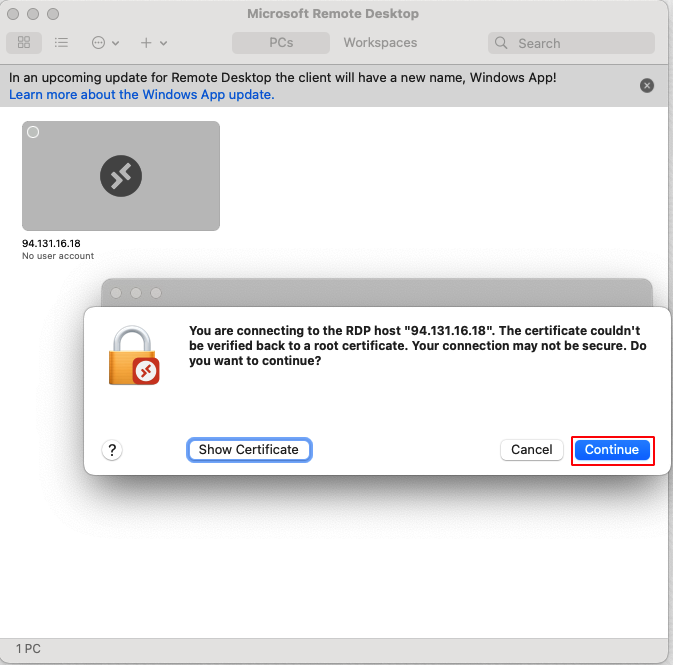
You will then see the remote desktop, where you can use your familiar applications — including a web browser.
Using xRDP on a Linux server is a convenient solution for anyone who wants remote desktop access with minimal cost and zero hassle.
Our hosting service provides ready-to-use Ubuntu 24.04 image with xRDP pre-installed, allowing you to deploy your server quickly and connect right away using the standard RDP client.
Give it a try — order your server at friendhosting.net and experience all the benefits of xRDP hosting today!