

Using the subscription feature in the Friendhosting client panel, you can automate service renewals by setting up regular payments from your bank card. This ensures uninterrupted service operation without the need to manually pay invoices each month (or at another selected interval). The subscription is processed through the Stripe payment system, which ensures secure handling of card data.
The subscription mechanism is especially useful for clients who want to maintain access to their services without the risk of suspension due to overdue payments.
Subscription During Service Payment
A subscription can be activated when placing a new order or renewing an active one, directly during the payment of the issued invoice.
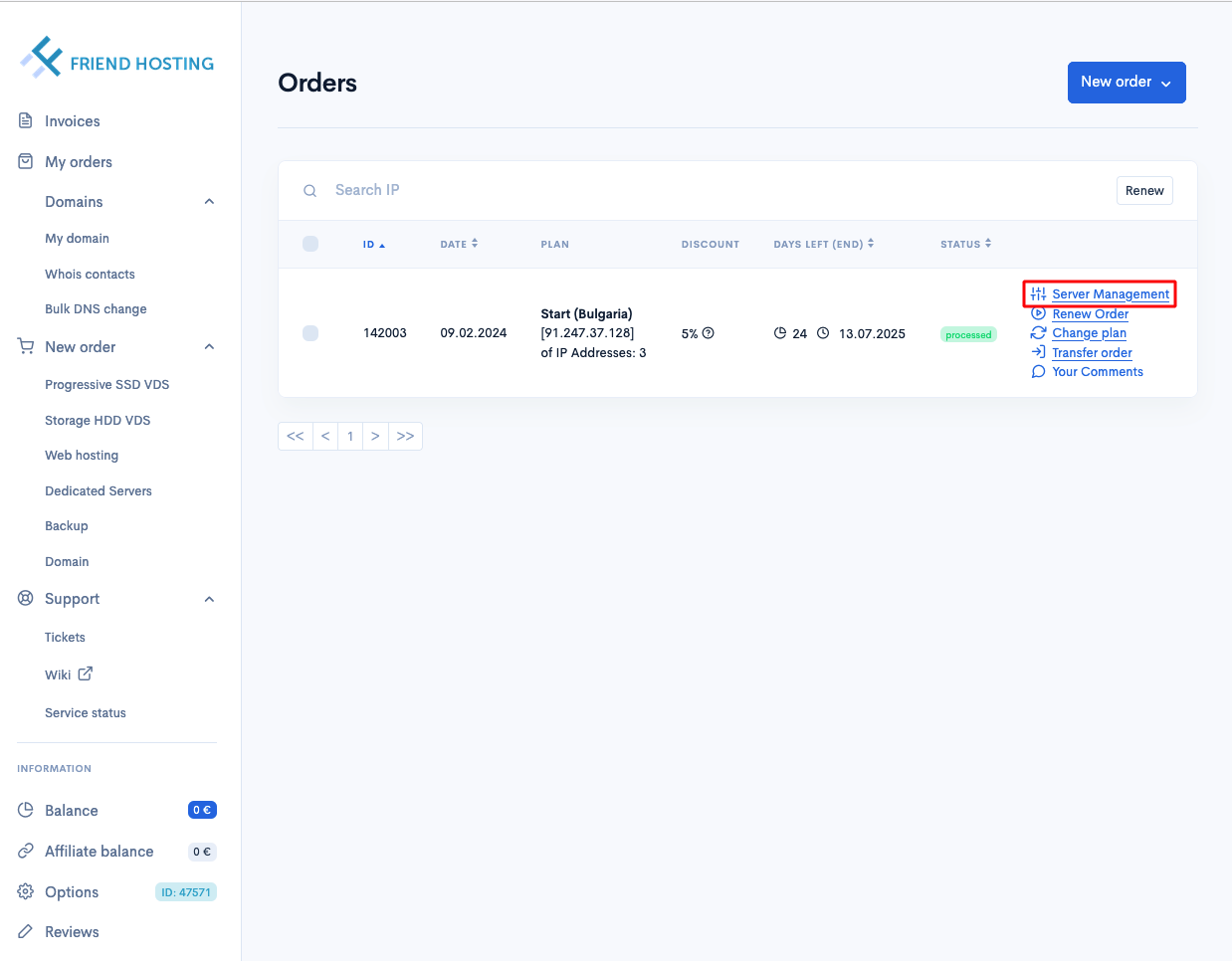
Step 1. Go to the „My Orders“ menu and click „Server Management“
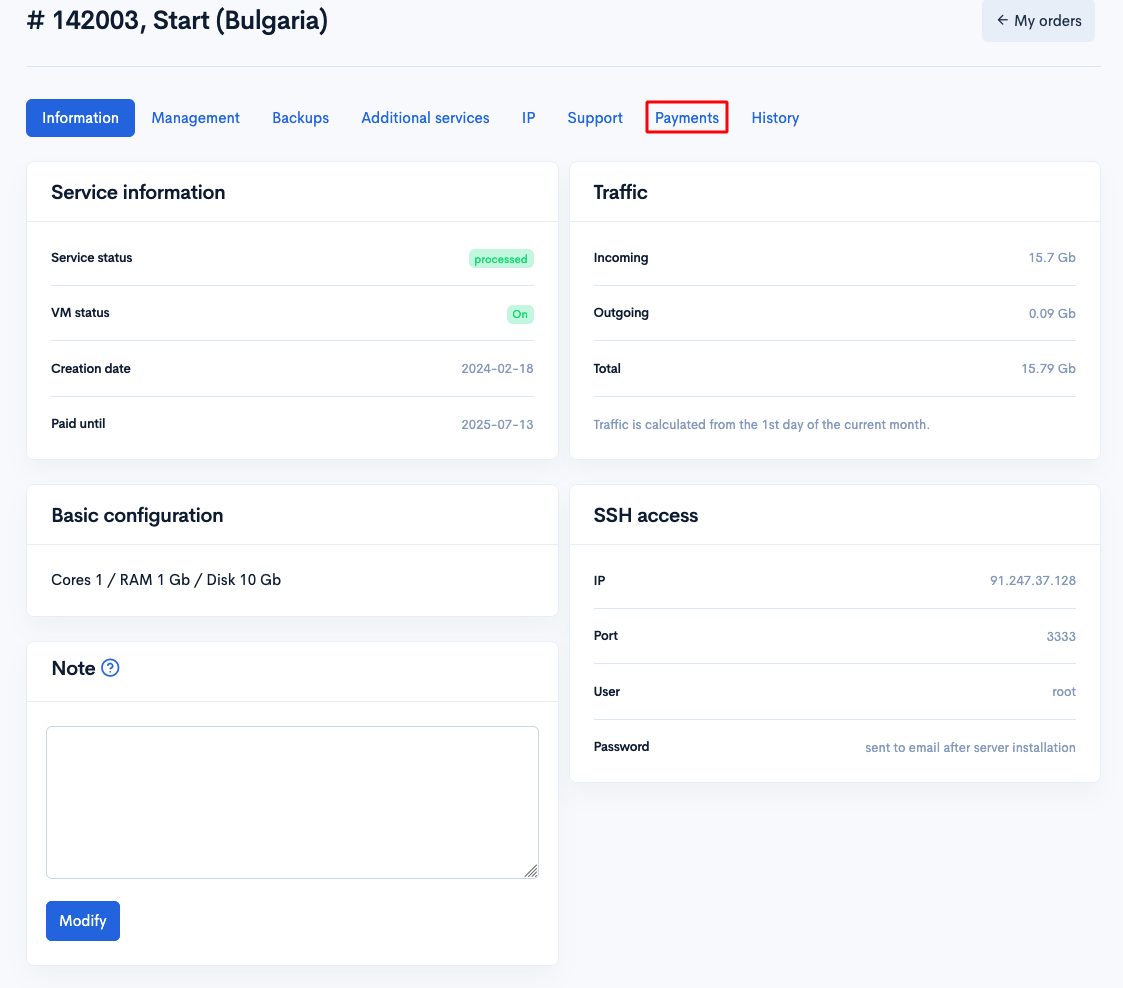
Step 2. Open the “Payments” tab
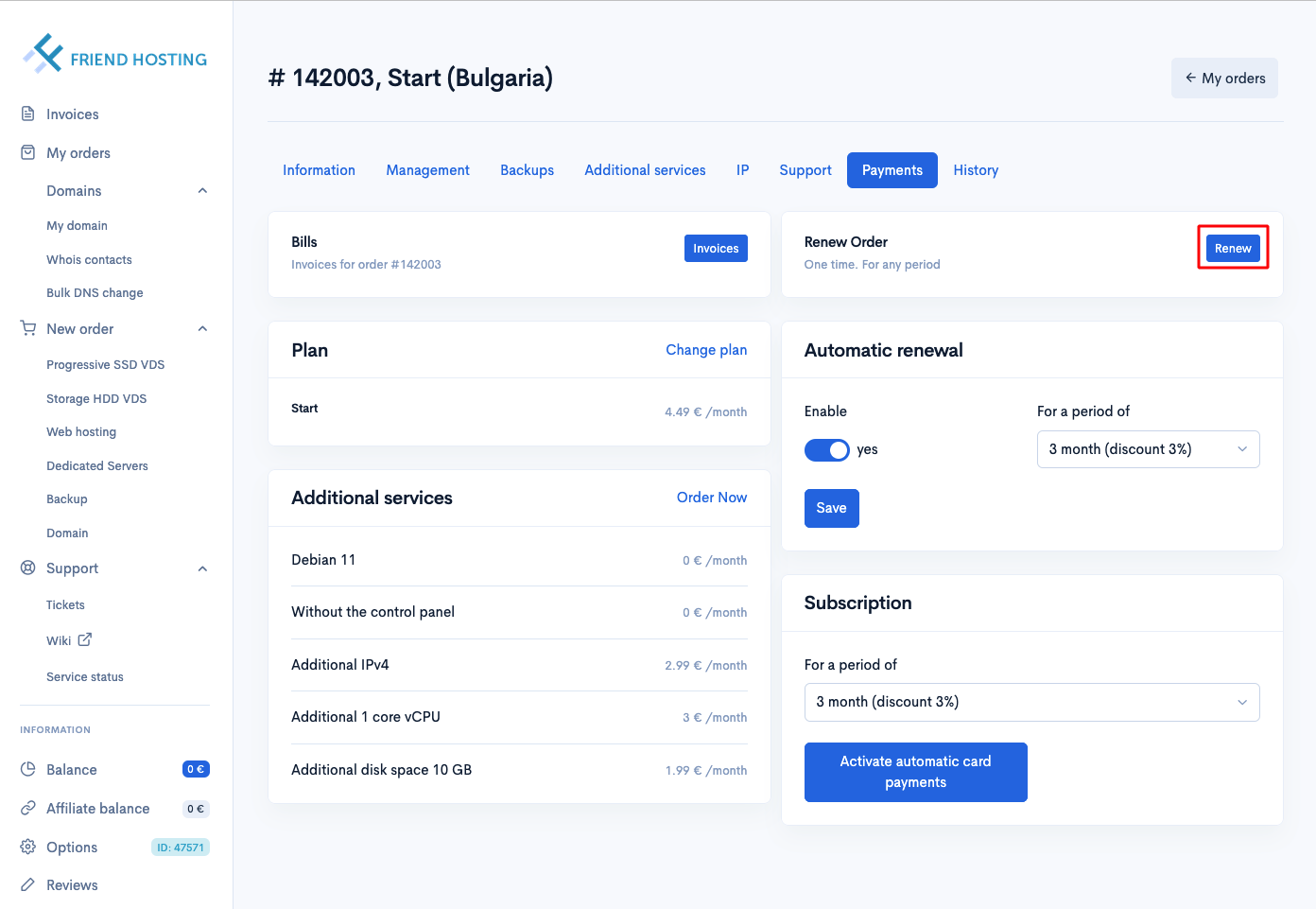
Step 3. Click “Renew”
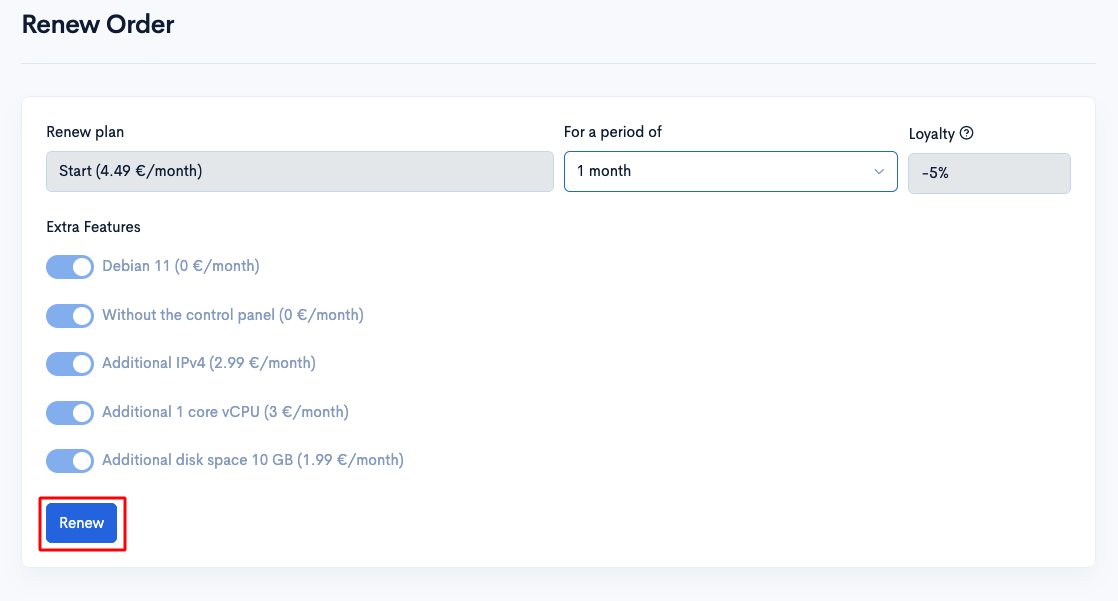
Step 4. Select the desired renewal period and click „Renew“
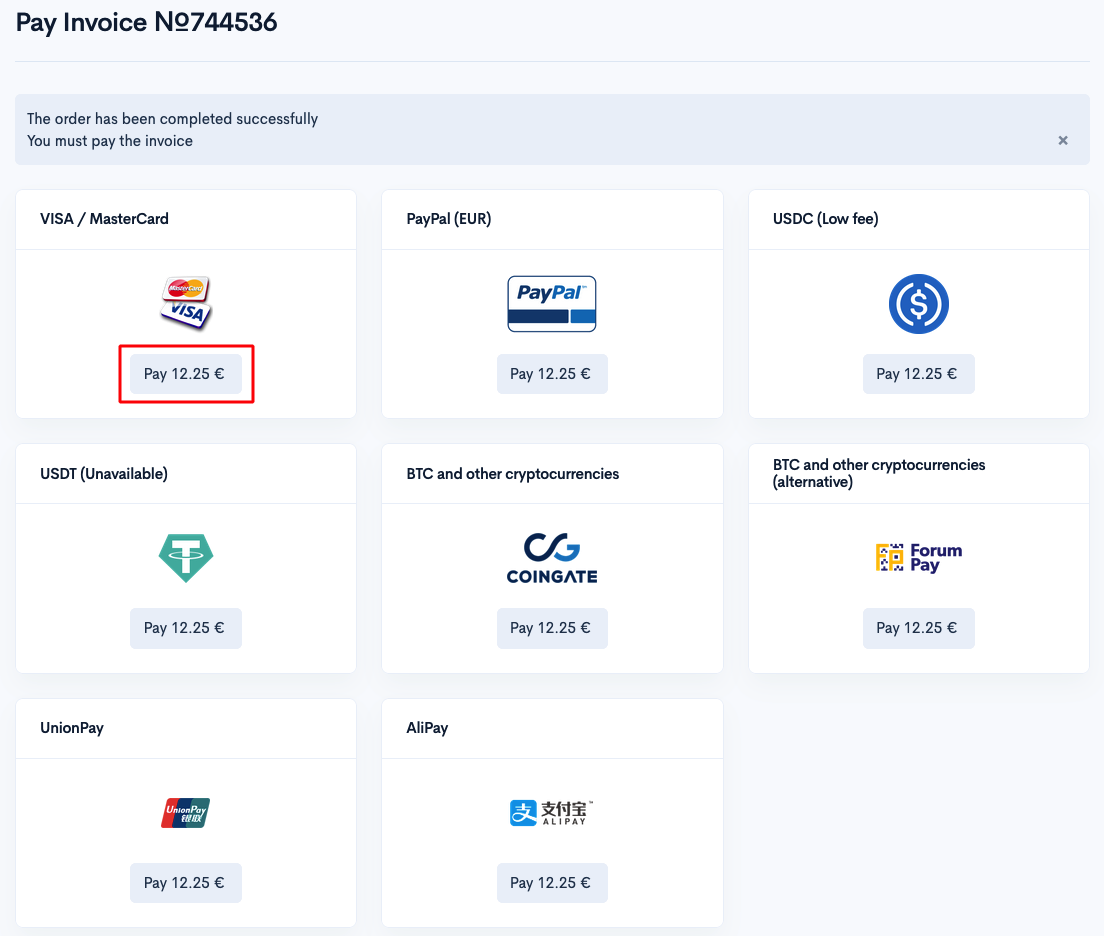
Step 5. Then select the „Visa / Mastercard“ payment method
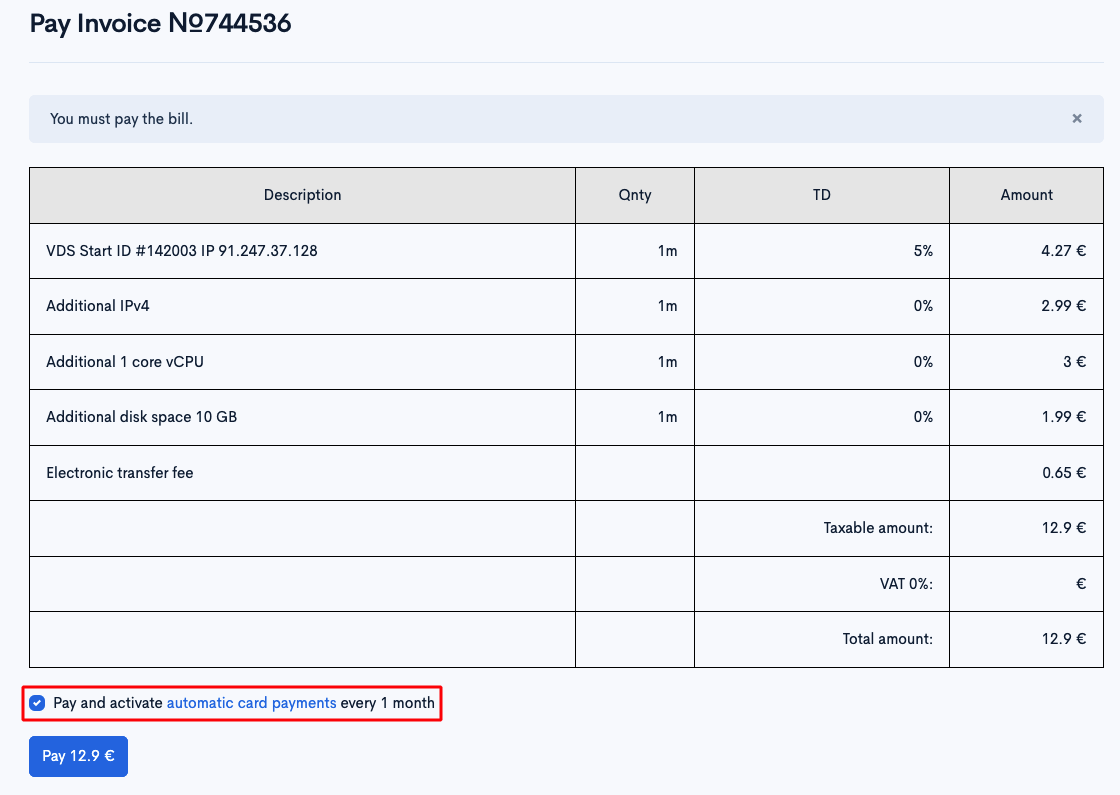
Step 6. Check the box “Pay and activate automatic card payments every n months.” The subscription period will match the selected renewal term.
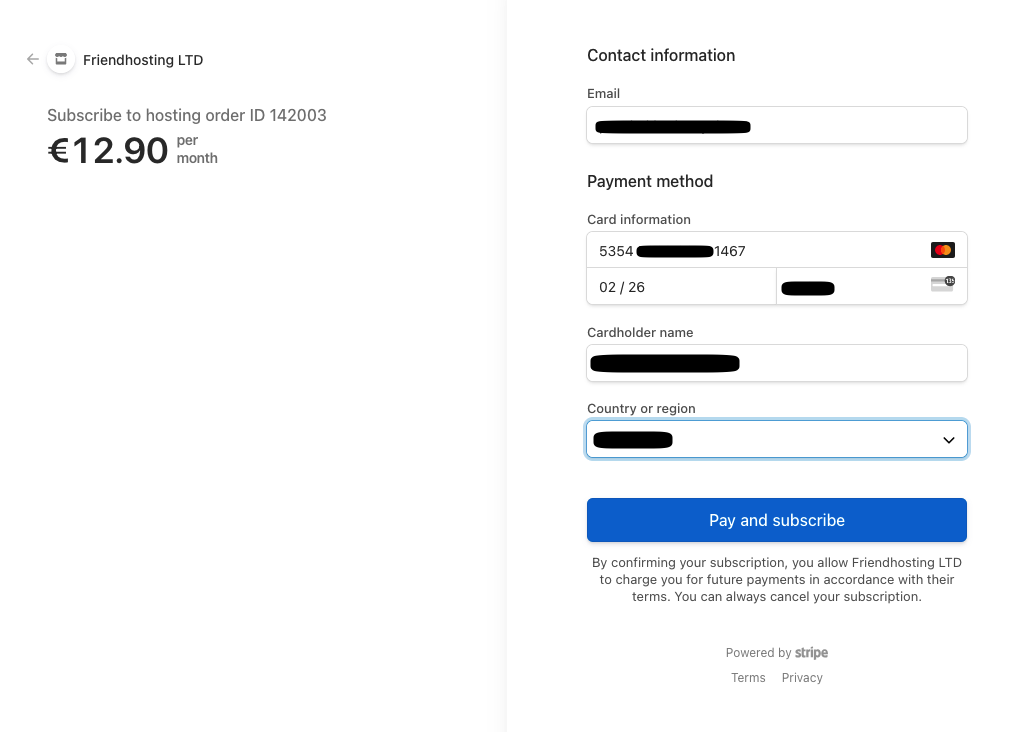
Step 7. A secure Stripe payment form will open — enter your card details and complete the payment
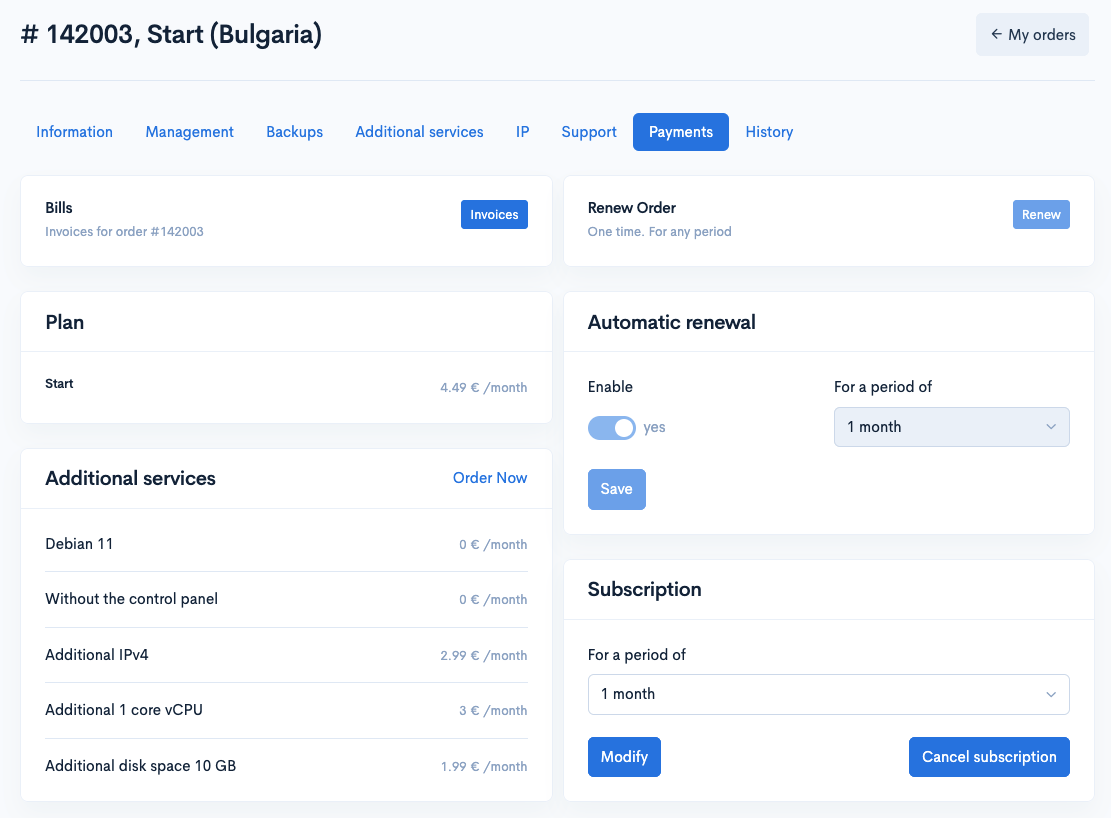
Step 8. After successful payment, the subscription status will be activated, and you will have access to subscription management (changing the period or canceling the subscription)
Subscription Without Immediate Payment (Manual Activation)
If the service is already paid, you can activate a subscription for future renewals.
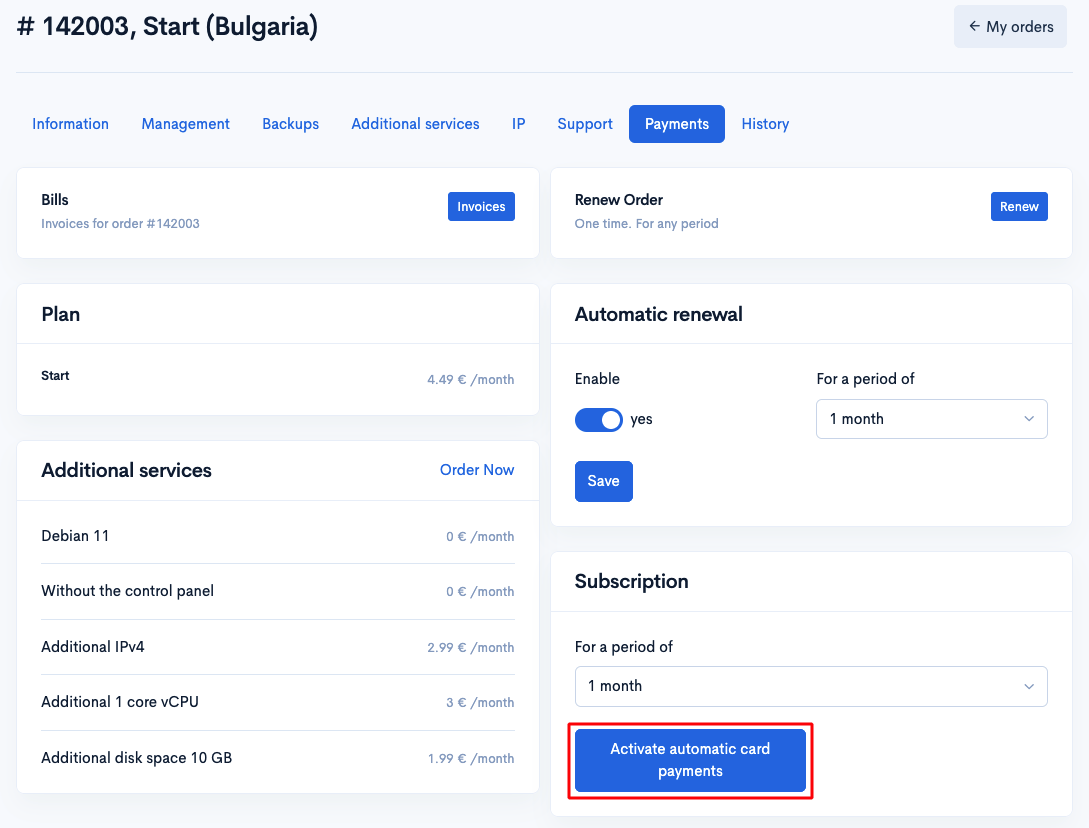
Step 1. Open the “Payments” tab of the desired order. In the “Subscription” block, choose a period and click “Activate automatic card payments”
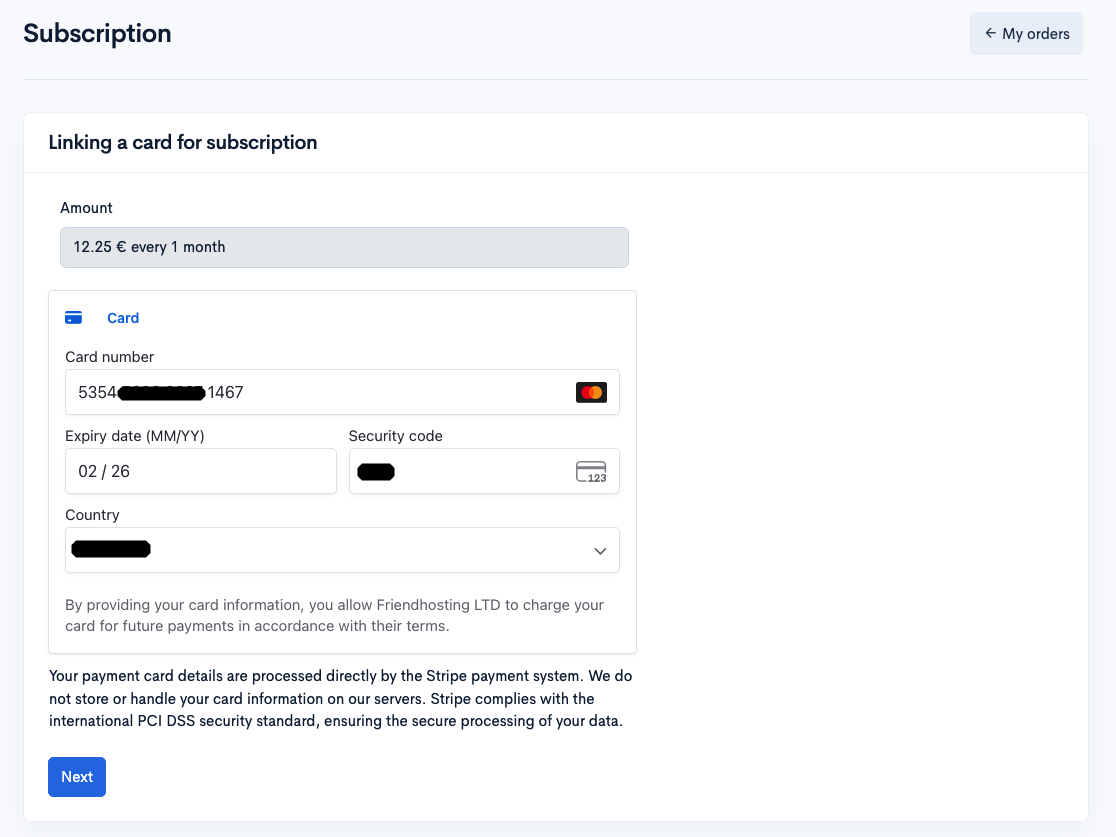
Step 2. Fill out the form with your card details (number, expiry date, CVV, country)
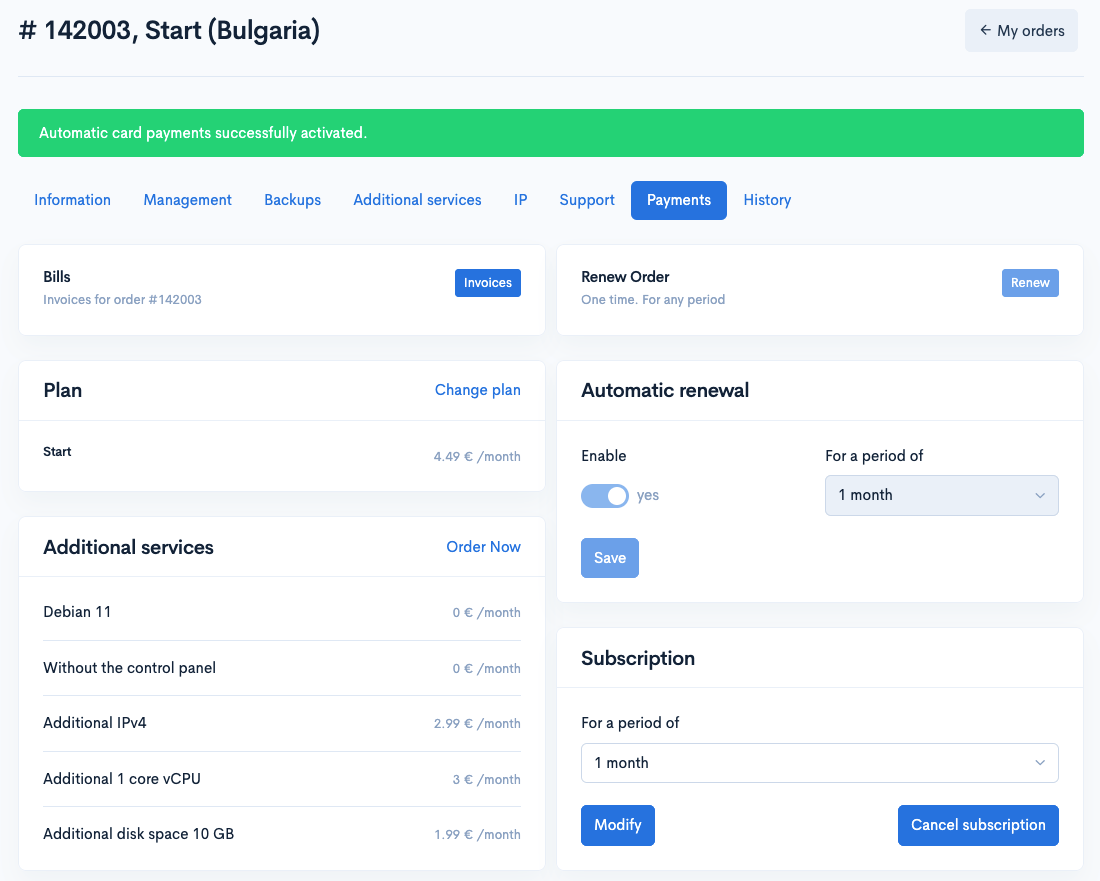
Step 3. After activation, you will see a confirmation message
Managing the Subscription: Changing and Canceling
The user can change the subscription renewal period or cancel it without removing the service.
Changing the Period
Step 1. In the “Subscription” section, select a new period (for example, 3 months with a discount)
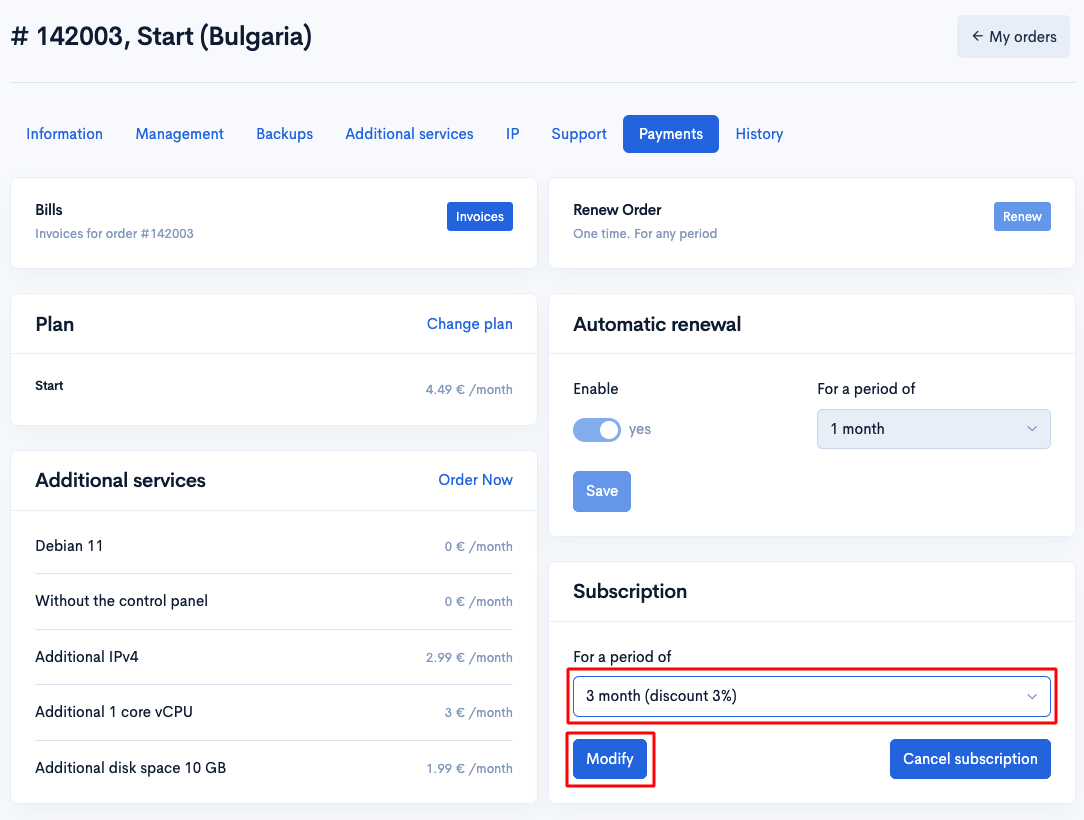
Step 2. Click “Modify” and wait for confirmation
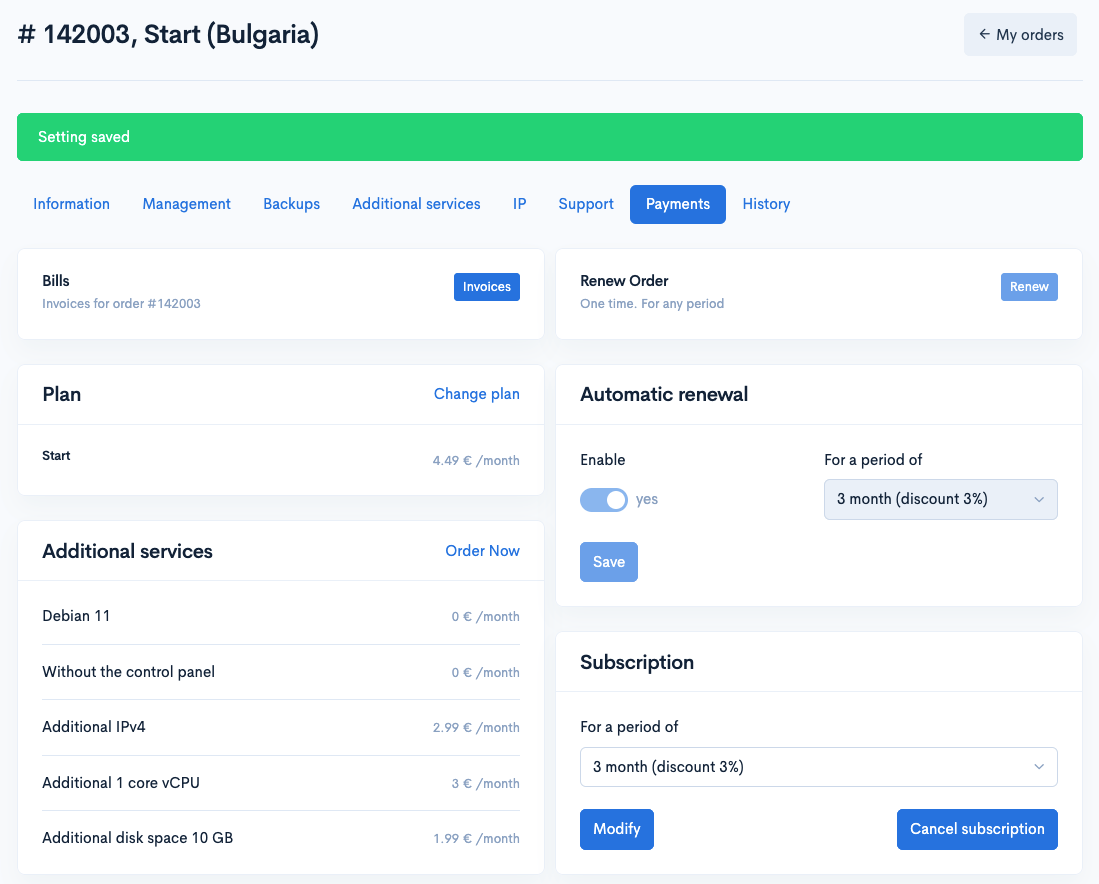
Canceling the Subscription
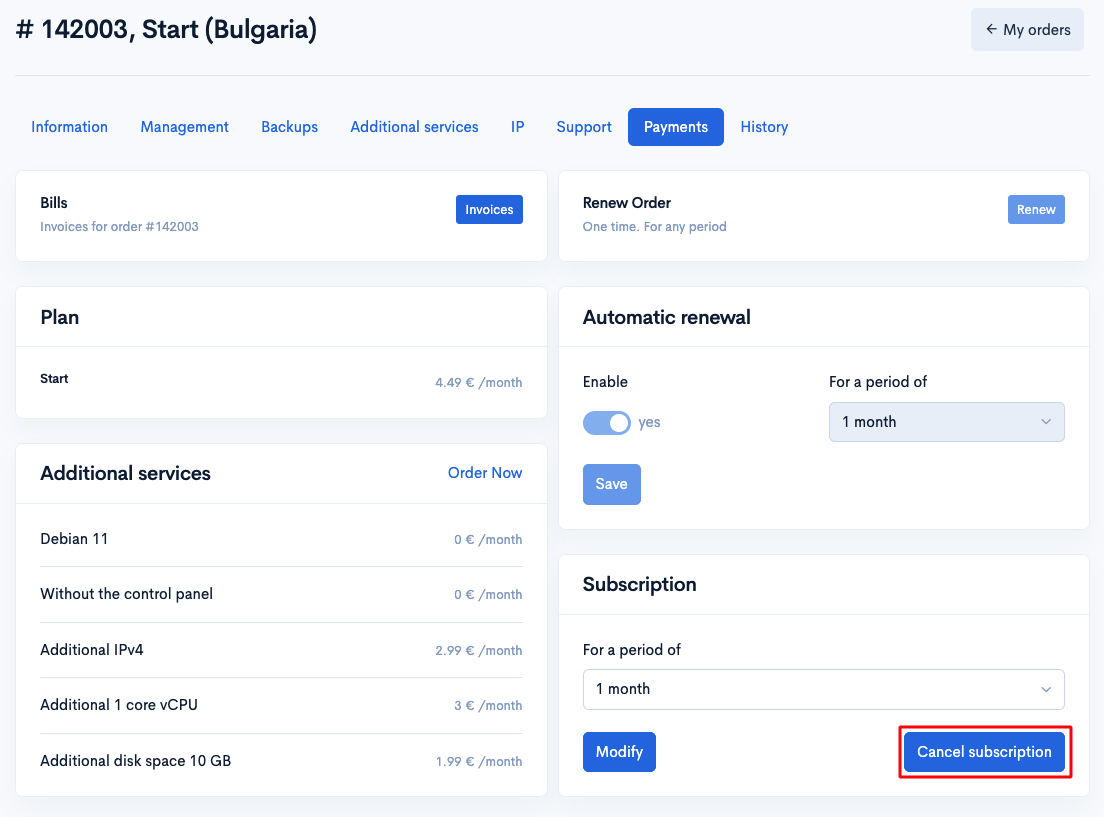
Step 1. Click the “Cancel subscription” button in the “Subscription” block
Step 2. After cancellation, a confirmation will appear, and the button will switch back to “Activate…”
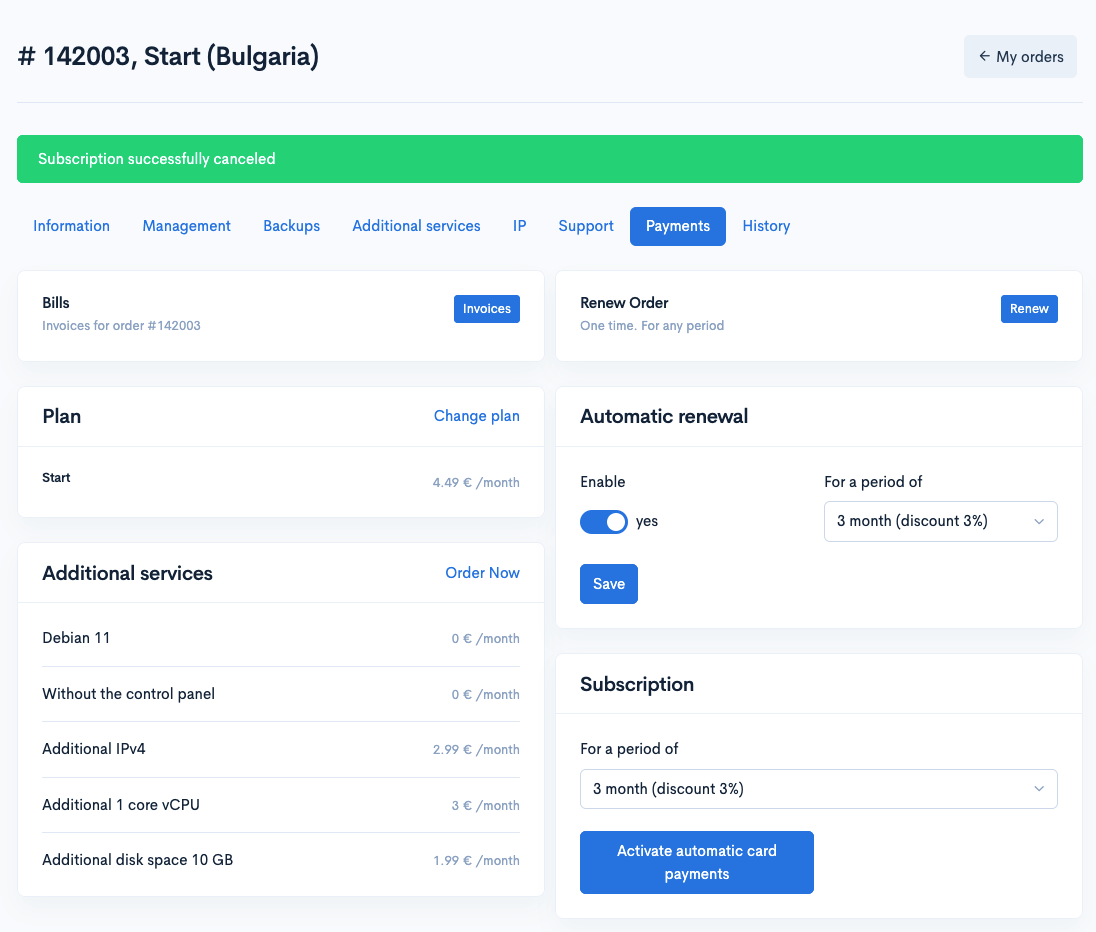
Please note: canceling a subscription does not pause the current service — it will remain active until the end of the paid period. You can re-enable the subscription at any time.
Notes
* The subscription is processed via Stripe. Card details are not stored in the Friendhosting system.
* The subscription applies only to the specific order (service), not to all services.
* If an automatic payment is declined, the subscription will be deactivated.
A subscription is a simple and reliable way to automate service renewals. It helps avoid unexpected suspensions due to missed payments and saves time. You can manage your subscription anytime through the “Payment” tab in the order management panel.